Review: Onyx Boox Go 7 Color Gen II
[md]November 11, 2026
This year, I decided to get a new ereader. Longtime readers may remember that I previously used an Onyx Boox Nova 3, acquired in 2020. There is absolutely nothing wrong with that device. It still works wonderfully. I just wanted something smaller and more portable.
My new ereader, the Onyx Boox Go 7 Color Gen II (what a mouthful!), is a wonderful little device. It's perfect if you are:
- very picky about every little bit of your reading experience
- technical enough to disable Google Play Services on an Android device using
adb - determined enough to configure KOReader (no mean feat!)
- willing to accept battery life slightly inferior to a Kobo or Kindle
- willing to accept a decent writing experience with a stylus, rather than the great experience Boox's WACOM displays used to have
What does the Onyx Boox Obsidian Go Leaf 7 9.5 Colour II: The Next Generation deliver? (OK, I made up some of that ridiculous name):
- total freedom of where you buy and source your ebooks with zero platform lock-in and many options for your ereader app
- a highly compact ereader with side page turn buttons and a screen slightly larger than the base kindle
- a highly portable device for journaling and notetaking with a pen (akin to a field notes or moleskein)
- a lovely screen with a configurable warm frontlight
- support for SD card storage
This post relays my experience playing with the Go 7 for nearly a month. And then things take a turn: stay tuned for that.
Name #
First: the name:
- Onyx Boox: manufacturer
- Go: model
- Color: it has a color screen!
- 7: it has a 7" screen!
- Gen II: they literally had no idea what to name the second version of the Go Color and this is what they came up with.
It is not a good name. Fortunately, the name is the worst part of the Marble Boon Away 15 Green Version 2.
Hardware #
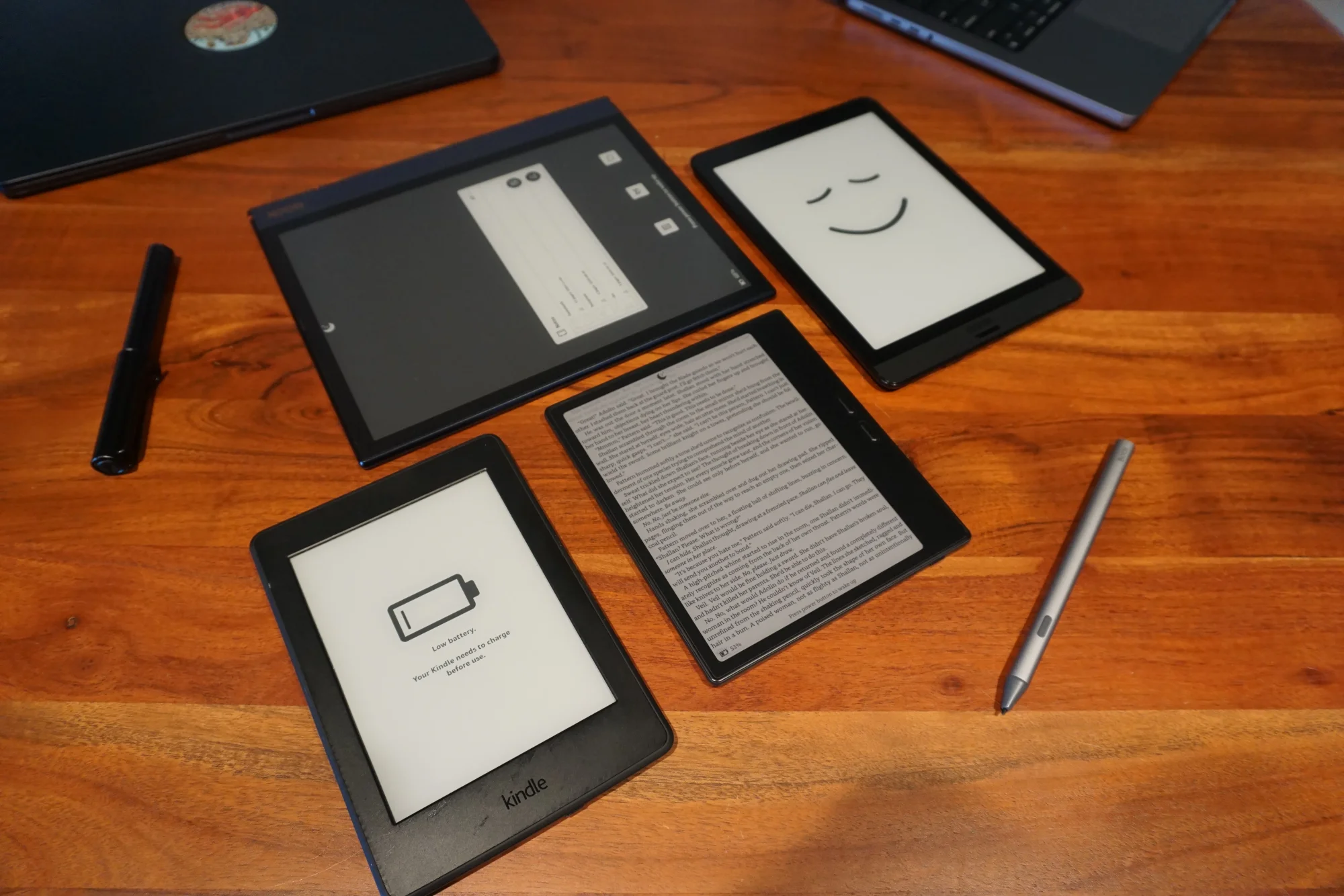
Let's start off with some pictures and specs.
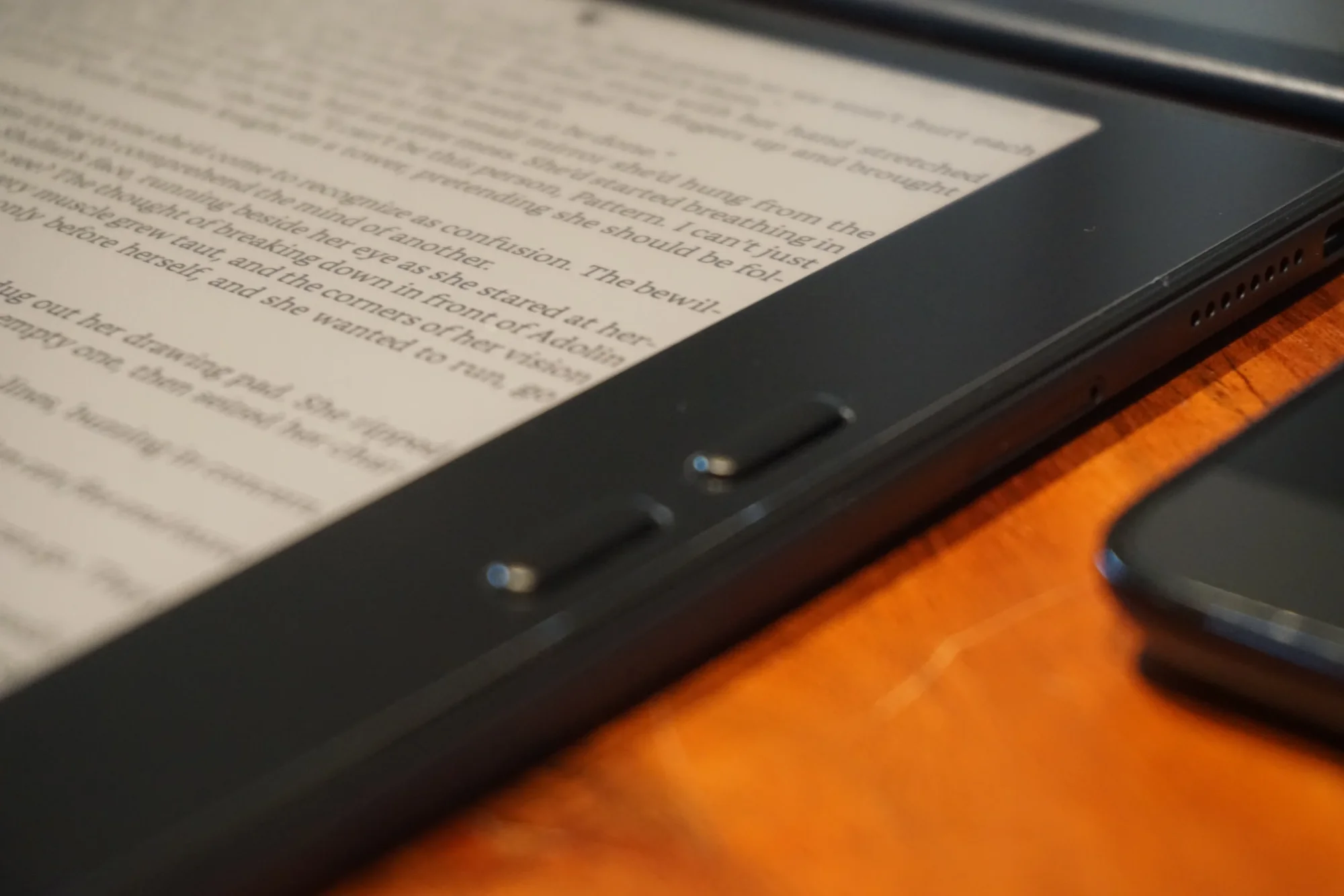
It's basically the Kindle Oasis, but with a USB-C port, Android, and a thinner chassis. You've got a fat right bezel with two (pleasantly clicky, rubberized) page turn buttons.
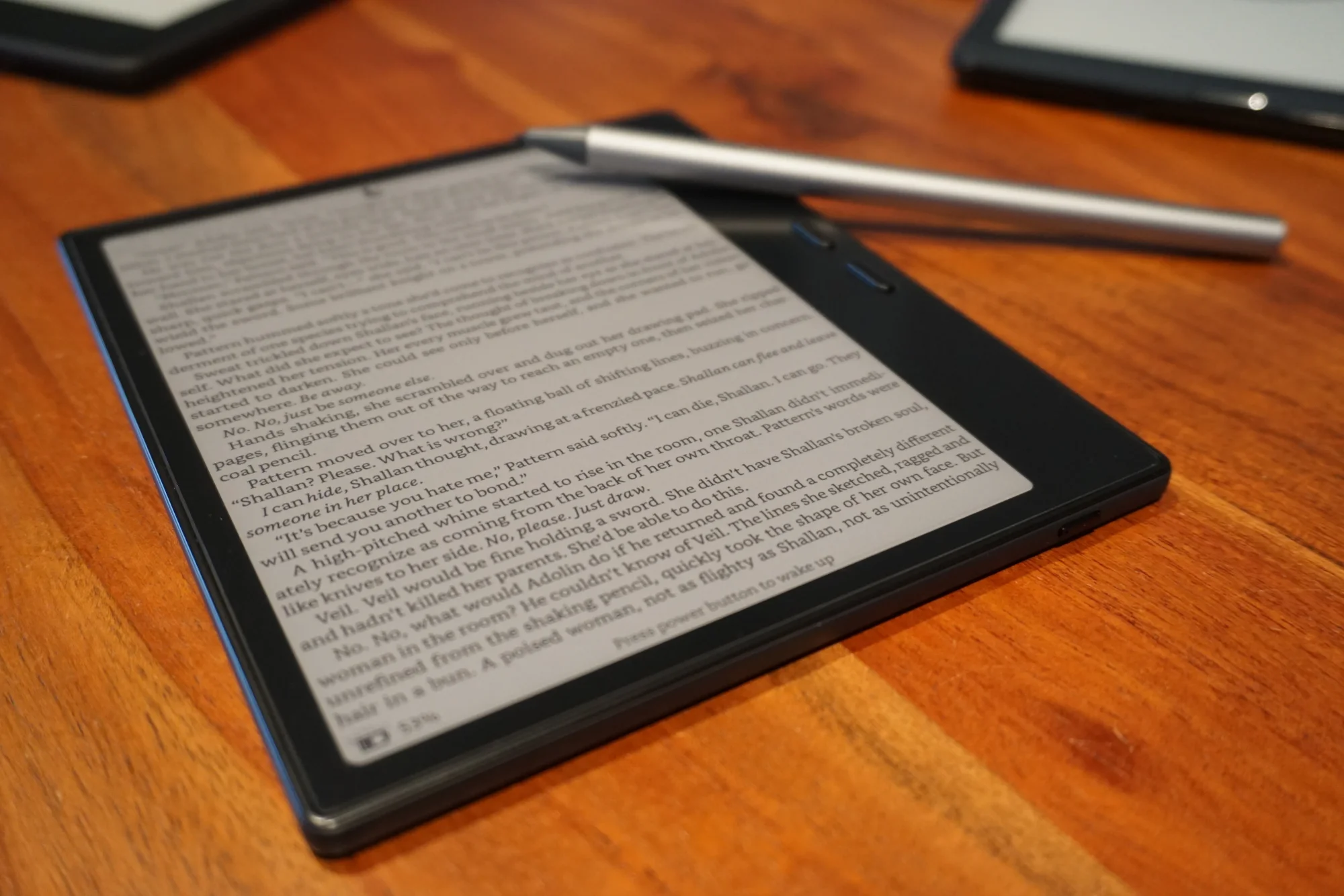
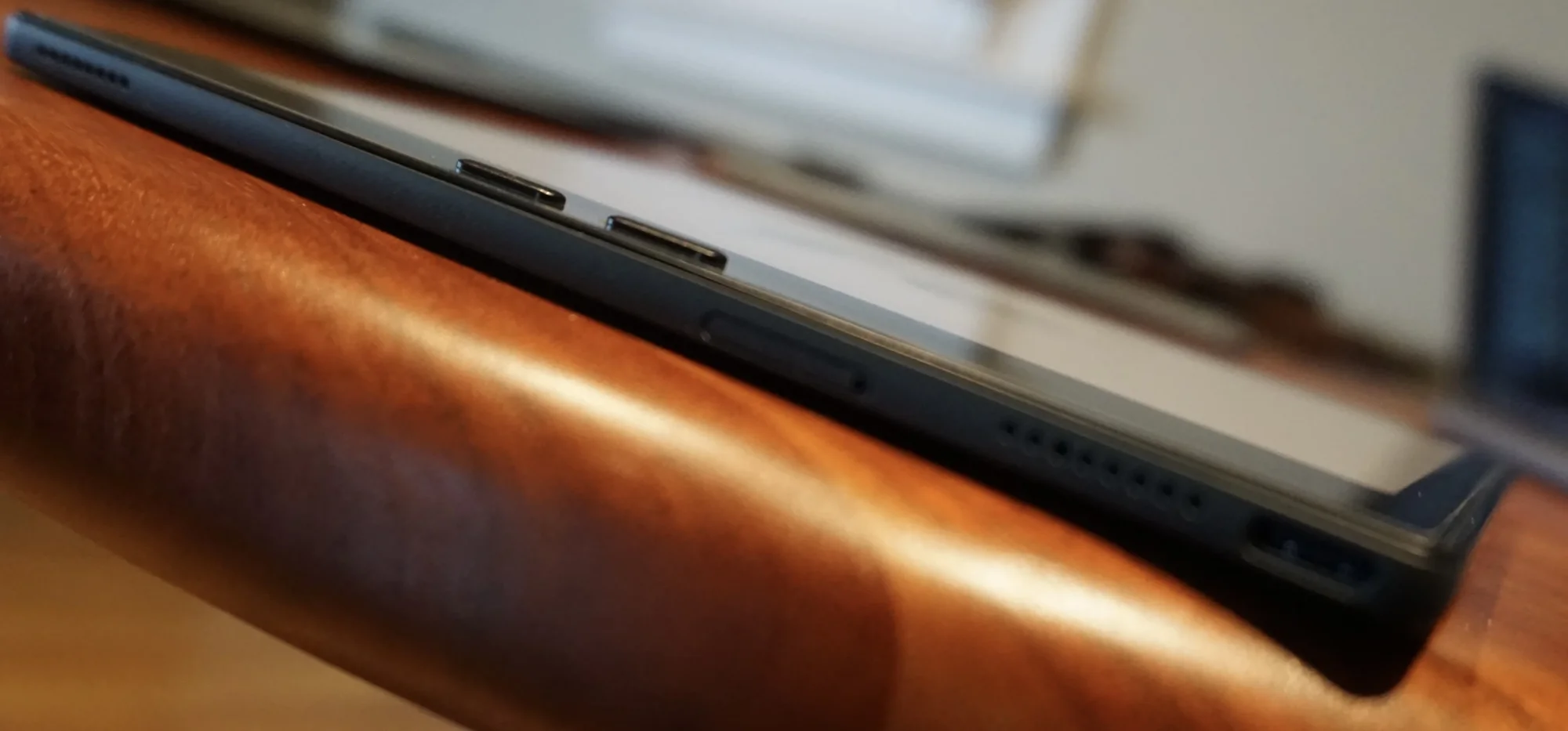
Size #
Size is the killer feature of the Go 7. My Nova 3 had a 7.8" screen. My ancient Kindle Touch had a 6" screen.
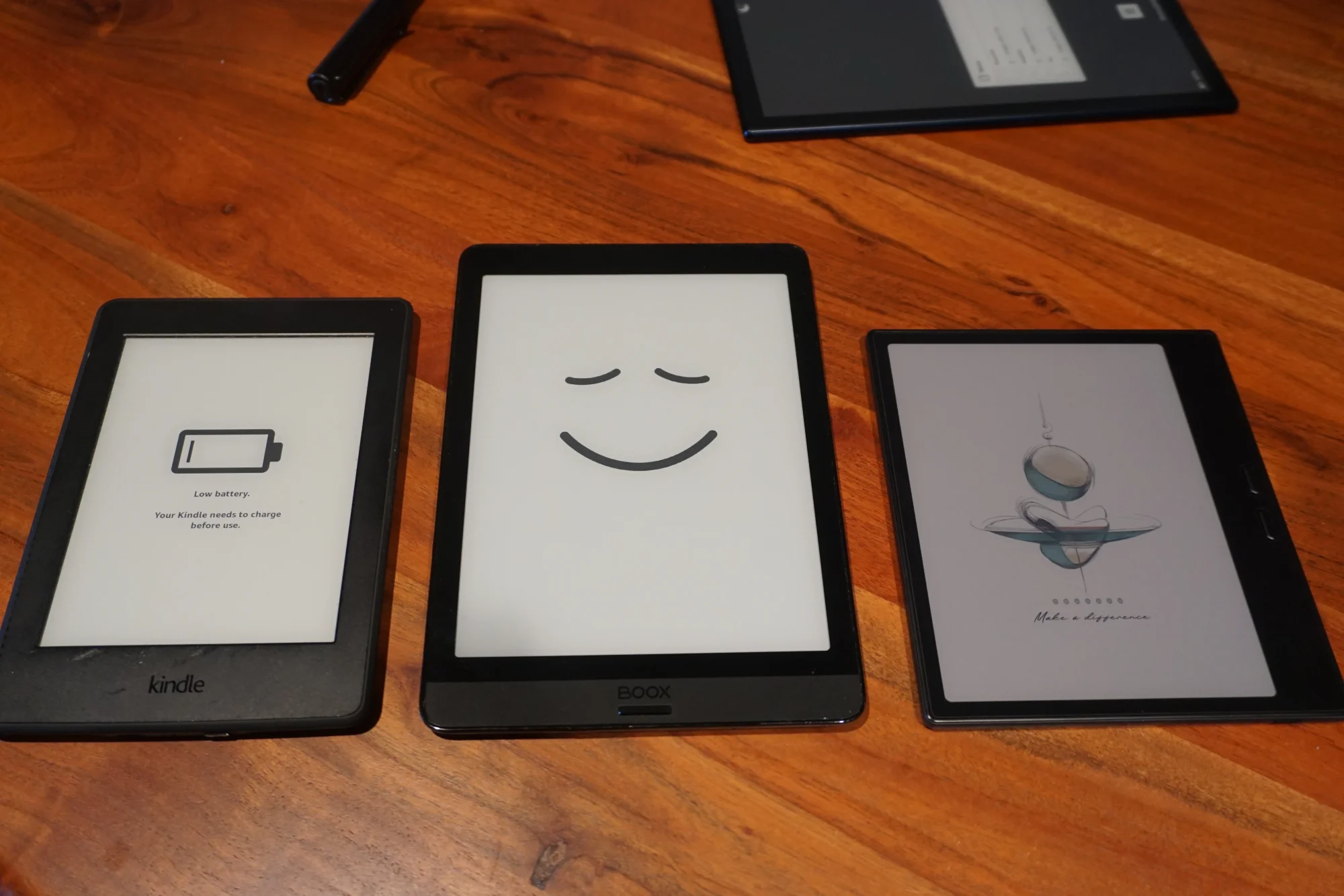
Here's a breakdown of the device sizes:
| Model | Dimensions (H × W × D) | Area | Volume | Weight |
|---|---|---|---|---|
| 6" Kindles | ~175.0 × ~125.0 × ~9 mm | ~200.0 cm² | ~200.0 cm³ | ~200 g |
| Onyx Boox Nova 3 | 197.3 × 137.0 × 7.7 mm | 270.3 cm² | 208.1 cm³ | 265 g |
| Onyx Boox Go 7 | 156.0 × 137.0 × 6.4 mm | 213.7 cm² | 136.8 cm³ | 195 g |
I've grouped 6" Kindles here because they're all roughly the same dimensions, but I don't have my old Kindle Touch any more for a picture comparison, so I've used Meg's old Kindle Paperwhite (4th generation) instead. Fortunately Amazon iterates hardware at a glacial pace so they're basically the same device despite the decade between their release dates.
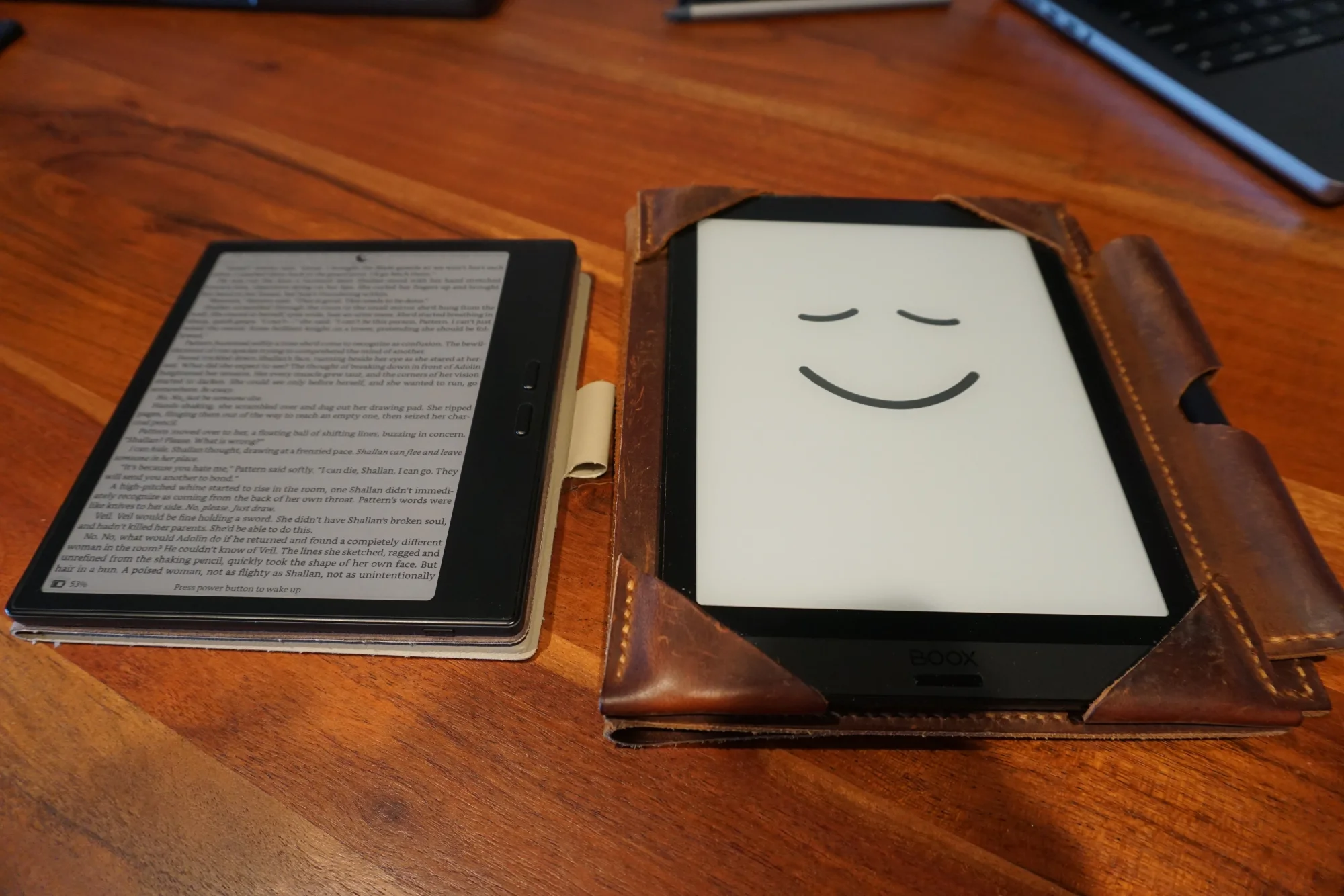
7" vs. 7.8" screen sounds like a small jump, but it's a massive 25% difference in size and weight, similar to the difference between an iPhone and an iPhone Pro Max. It's nice to get away from lugging around the Pro Max.
Screen #
The story is a little different for the screen.
First: the size.
The Touch screen feels like a mass market pulp paperback. The Nova 3 screen feels like a hardcover. The Go 7 screen feels closest to the big high-quality paperbacks, or maybe the small low-quality hardcovers. In an ideal world, I'd have a 7.8" screen, because the extra space makes it easier to write and reduces the number of page turns when reading. But you need a bigger device to fit that 7.8" screen, at which point your ereader no longer fits in your pocket. I think the 7" screen strikes the right balance of "enough space to read and write" and "fits in my coat pocket".
| Metric | Kindle Touch (4th Gen) | Onyx Boox Go 7 | Onyx Boox Nova 3 |
|---|---|---|---|
| Diagonal Screen Size | 6.0 inches | 7.0 inches | 7.8 inches |
| Screen-to-Body Ratio | ~54.0% | ~71.1% | ~69.7% |
| Total Screen Surface Area | ~11,000 mm² | ~15,000 mm² | ~19,000 mm² |
Second: this screen refreshes really, really fast. Fast enough that you can actually watch a YouTube video (it was possible on the Nova 3, but not pleasant). I guess e-ink doesn't feel laggy any more, and full-screen refreshes are far, far less obvious now. Sometimes I forget I'm even using e-ink.
Lastly: this has color! In a "Sunday paper has color" kind of way, yes. But it has color. Color makes it way easier to use random Android apps that aren't optimized for black-and-white screens. Color makes certain inline books readable (lots of fantasy maps and images from biographies and even the text in the best version of The Neverending Story). But Color has another side. A dark side. Basically, there's a color layer on top of the monochrome e-ink screen. So 'whites' (like your page background) are darker, because there's... stuff in between you and the white. It's both a big deal and not a big deal. I keep my house pretty dim, using exclusively warm not-too-bright lights so I get sleepy naturally after the sun sets. In certain reading spots, the contrast is obviously worse than my Nova 3. But the frontlight makes up for it. I think the worse contrast could be a dealbreaker if you:
- don't use the frontlight during the day
- have at least one favorite reading spot with mediocre lighting
- already find yourself increasing the frontlight higher than you'd like to improve contrast between black and white
When I first got the Go 7, I noticed the worse contrast immediately and it annoyed me. Now that I've been using it for a while, it doesn't bother me at all, except very rarely when I read somewhere... shady. In true dark environments like my bed at night, it doesn't matter, because the frontlight provides plenty of contrast. In true bright environments like a sunlit patio or hanging out in my living room during the day, the sun provides plenty of contrast. But if you spend a lot of time in an environment with ambient sunlight but dark candlelit pockets like Count Floyd's mansion, maybe it would be annoying? Ultimately, you have to decide: will you use color for apps and notes and images enough that you're willing to take the contrast hit in those 'shoulder brightness' zones?
Sufficiently Clicky Buttons #
Many ereaders, including Meg's Kobo Libra Colour, have insufficiently clicky buttons. These rattle a little bit if you nudge them around, but they are extremely satisfying to click. They remind me a lot of the keyboard on my 2015 Macbook Pro (pre-Butterfly keyboard fiasco): they wiggle around a little bit at rest, but when you click, you get a nice bouncy obvious click action.
Dat Feel #
The top, left, and bottom bezels are quite small, as small as can be comfortable without causing accidental screen touches. The right bezel is just about the perfect size to fit the (forgive me) fat part of my thumb in the bottom right, while resting the tip of my thumb between the page navigation keys.
The chassis is plastic, but it's much nicer plastic than whatever my Nova 3 was made of. The Nova 3 was that classic trashy shiny highly-crackable stuff. It wasn't awful for the back, but on the edge of the screen, the transition from 'very nice glass' to 'shitty plastic' was... abrupt. And that plastic wasn't very robust: I somehow managed to crack the plastic around the edge of the screen putting it into a case after just a few months of ownership. It wasn't a big deal, but it annoyed me basically whenever I looked at that plastic edge. The Go 7, on the other hand, reminds me a lot of the feel of the Google Pixel 4a or the Google Pixel 5 -- for all I know, it's a layer of rubberizing on top of aluminum. When I read outside on a chilly day, the frame of the device feels chill to the touch, so I suspect there is indeed an aluminum frame under there somewhere. But a lot is plastic.
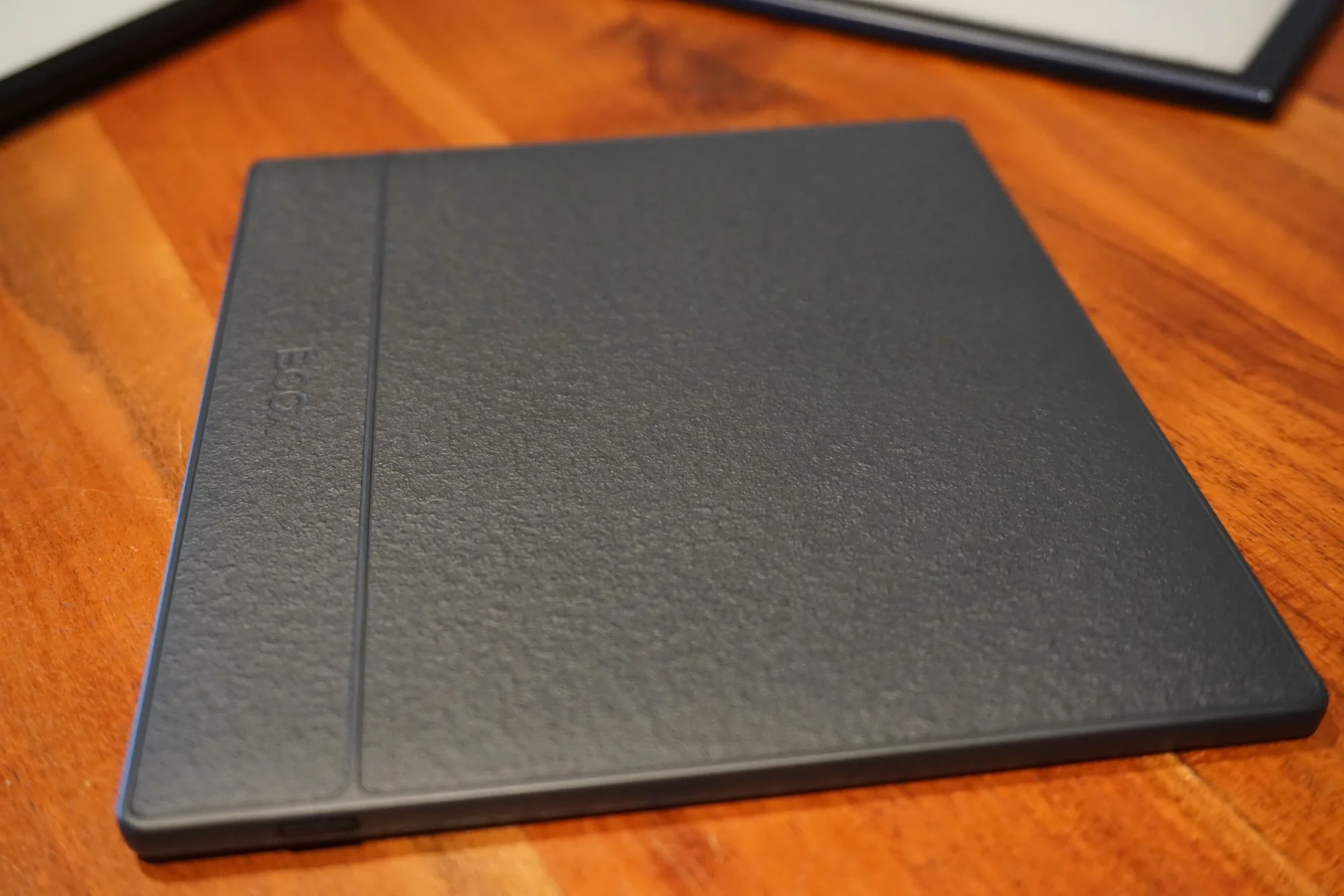
The corners are a little sharper than I'd like (the Kobo Libra Colour has far more ergonomic fat rounded corners), but they aren't uncomfortable unless you really wedge them into your (forgive me) thumb crevice. The back of the Go 7 is... weird. It's obviously some kind of plastic, but it's textured to feel like paper. It's very grippy, but I have no idea how it will wear over time. It kind of reminds me of the sandpaper-textured back of the OnePlus One, a cult classic, and I like it more and more every month. So I guess, like most of this device, the back is weird, but it grows on you?
Magnets? How Do They Work? #
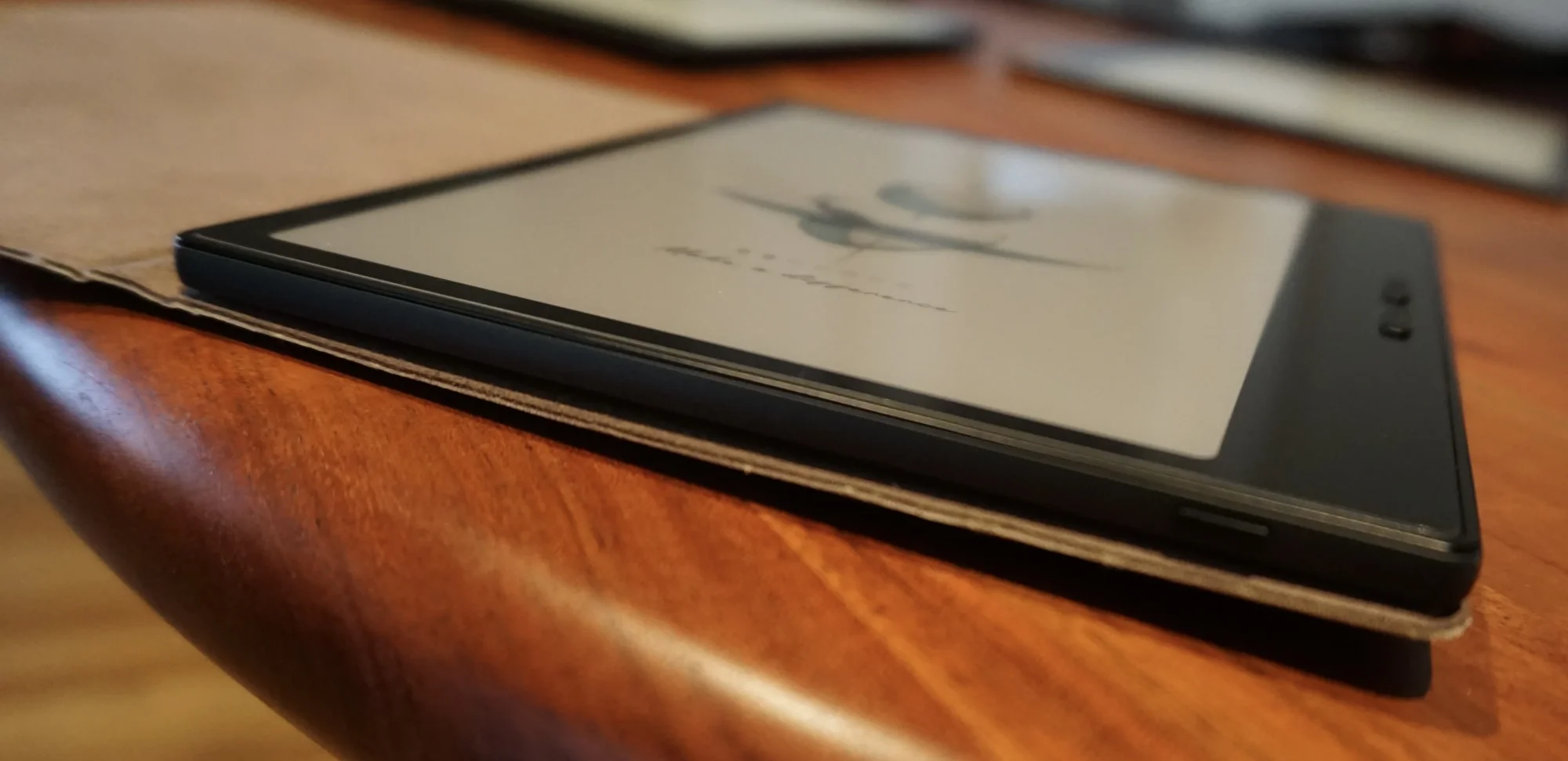
Boox built magnets into the back so you can easily attach a case, and magnetic sensitivity on the front to automatically wake and sleep the screen when you open and close the cover. It works well with the bundled case, which has stayed connected to my Go 7 even when I walk around with it in a messenger back with a bunch of other crap. Boox is absolutely terrible at providing first-party cases for their devices in the long term (funnily enough, my Nova 3 still receives software updates, but I can't buy any first-party cases for it, or even any non-generic form-fitted third-party cases). So I'm hoping to eventually build my own cases for the Go 7 -- I'm tinkering with a 3D printed fat-on-one-side design to mimic the ergonomics of the Kindle Oasis and the Chinese-only Leaf 5+, and I'll probably source some leather to make a simple folio case, too. Magnets will help a LOT with getting a nice fit without getting the 3D printed dimensions perfect, and will stop me from adhering two-sided tape to that polarizing paperlike sandpaper plastic back. When I get around to mapping out the magnet locations, I'll share a diagram here so other people can hack as well.
Pen #
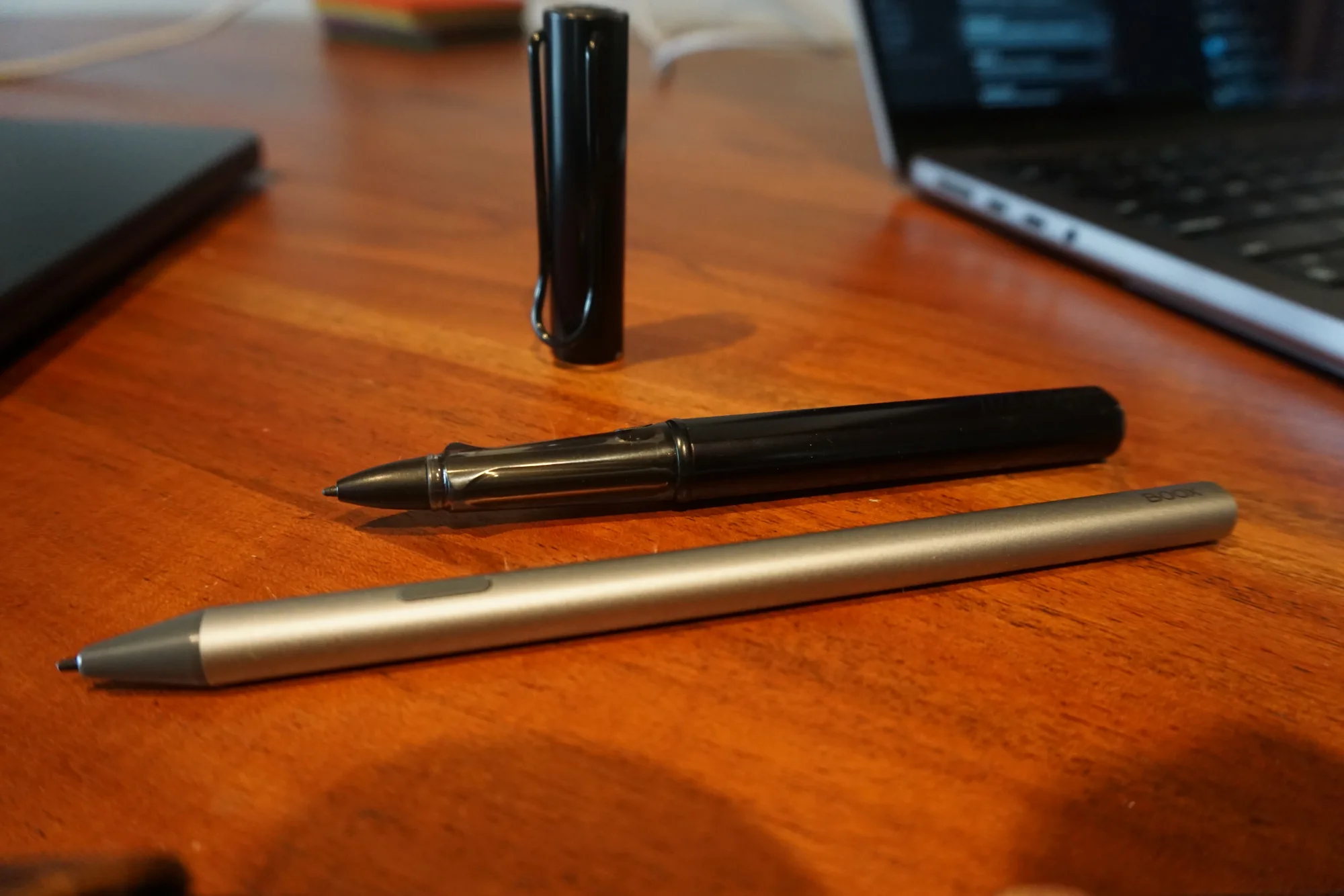
The screen supports a stylus. But not the passive WACOM magnetic stylus I had on my Nova 3. Instead, we have a USI stylus, which doesn't require a special magnetic layer (yay for thinner devices), but also has... worse precision and requires charging (bad for battery life too).
I won't kid around, the active stylus is straight trash in every single way compared to the old passive one. Another thing to charge. And keep paired to your ereader. Another thing to passively drain your ereader battery. Another thing whose battery can someday die. And USI pens are bigger, heavier, and more expensive than WACOME styluses.
It also drains way more battery as you use the pen, because... reasons.
But hey, it's a 7" e-ink screen with pen support. As far as I can tell, that's never existed before (besides the Kobo Libra Colour)!
The pen itself is nice. Aluminum body, one light (that randomly turns on whenever you nudge the device when it's sleeping and it presumably feels the need to... inform you that it woke up?) (it also turns orange when charging, green when fully charged). I've charged the pen a couple of times out of anxiety, but I've never seen it below 50% in control center. So I guess the battery life is measured in months? I wish there was any way to detect the battery level on the pen itself, without opening control center on my Boox.
Writing is a little less precise than writing on my Nova 3 or Meg's old Note Air 2, both of which had WACOM magnetic pens that felt infinitely precise. It's harder to control the position of the line and it feels like the line width varies a lot less depending on how hard I press.
I really miss the WACOM magnetic screen. It is absolutely not worth trimming .1mm or however much the monopolistic e-ink company saved by removing the magnetic layer. I hate having to charge my pen. I miss the WACOM precision. I hate that USI pens are all bigger and heavier than WACOM pens because they have a big dumb battery, they add no new functionality, and they make the writing experience worse on Boox devices. E-ink and Boox should be ashamed to switch from WACOM to USI just to save a few bucks on licensing costs and materials. If you really really really care about writing... stick with your WACOM device.
Writing Feel #
Writing on the screen, much like my Nova 3, feels like... writing on glass. It's fine. But with the Go 7, I decided to try a BELLEMOND Kent paperlike screen protector. Writing on this feels great, it's almost more friction than paper. If you don't like the 'writing on glass' feel, I recommend it. It feels a lot like writing on Meg's old Onyx Boox Note Air 2, which comes with a pre-applied matte/paperlike screen protector.
Warning: my pen nib seems to be wearing pretty quickly, but at least I have a couple of spares. Maybe that has to do with the screen protector? Or maybe I'm just pressing too hard?
Software #
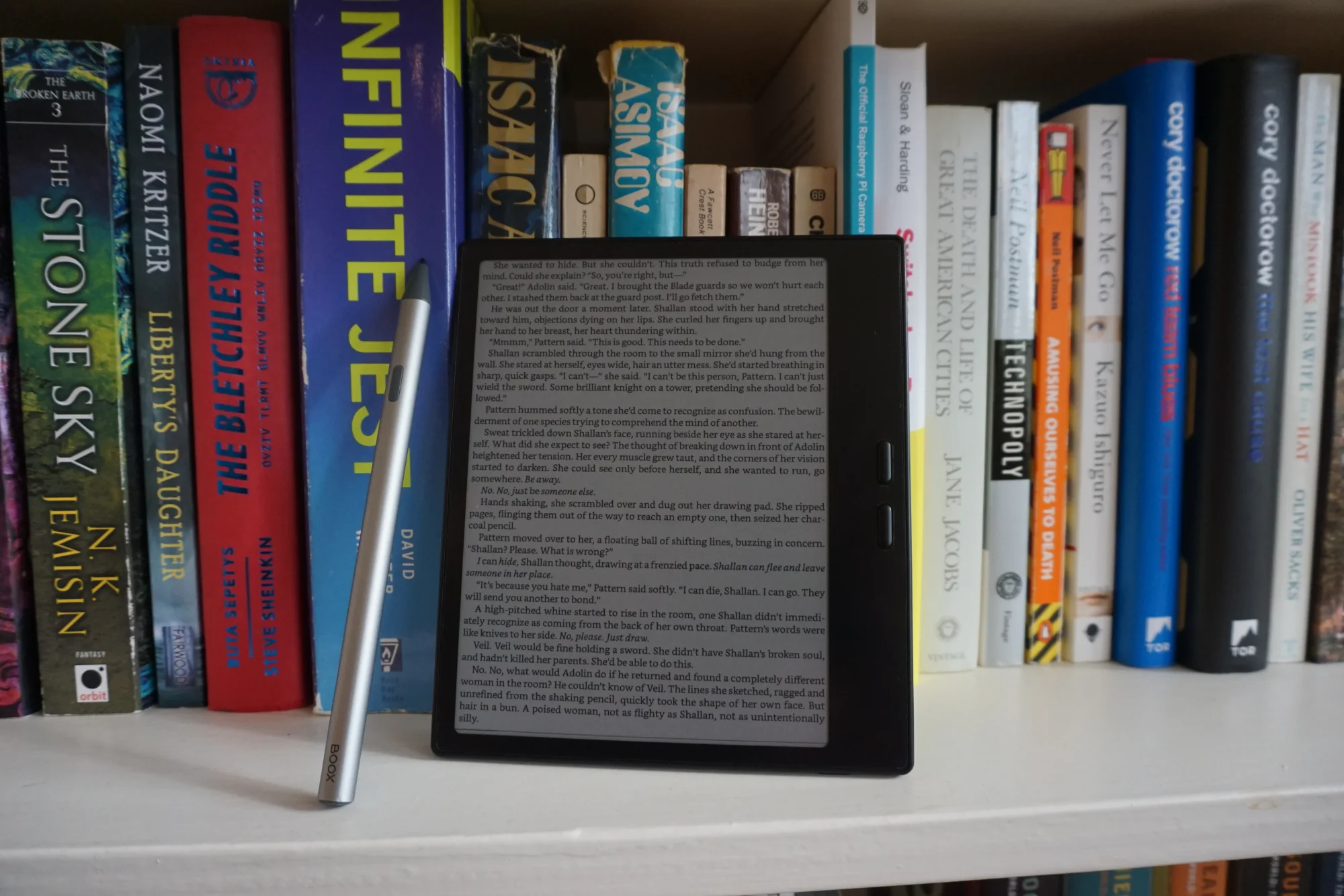
Boox provides all of the apps you need to read, write, browse the web, and take notes. I don't like any of them besides the notes app. But they're all fine, and technically you could just use those instead of installing any other apps. I, however, find a few apps essential:
- KOReader is the best ereader software ever made. Infinite customization, sensible defaults, the only issue is a design ethos that's closer to Calibre or GIMP than anything else. Maybe with some inspiration from the iOS or macOS settings app. Once you get used to the menu organization, it's wonderful. But there is a bit of a learning curve. I especially love the fully customizable margins (literally down to the pixel, all the way to the edges of the e-ink screen) and the (also fully customizable) progress bar: I hated seeing a percentage or fraction for progress back when I had a Kindle, but I really appreciate the visual indicator of a bar that slowly fills up, kind of like looking at the side of your book to see where your bookmark sits in the stack of pages.
- Firefox (well, Fennec): the only mobile browser with support for uBlock Origin, nuff said
- F-Droid: remember when mobile app stores weren't full of ads and scams? F-Droid is an app store for free, mostly open source Android apps, without enshittification. It's full of apps that people made because they think they're cool, not because they're trying to get rich quick or become a trillionaire. It's the only mobile app store that's fun to download random apps in, because the apps aren't scams. Side benefit: a huge number of apps on F-Droid are 10MB or less, whereas Google Play and iOS App Store apps have all somehow ballooned to 100-500MB these days. Nice when your device only has 64GB of storage.
- Ghost Commander: my file manager of choice on Android. Unlike desktop file managers, Ghost Commander defaults to a two panel view, and actions like 'move' and 'copy' will use those panels as source and destination. So if I open my
Downloadsfolder in one panel and select an EPUB I just downloaded, and the other panel is in theBooksfolder, the 'move' action will copy my EPUB fromDownloadstoBooks. Nifty and lovely. Also includes extraction of archives like ZIPs and RARs, which is helpful if you ever download a collection of ebooks. - LocalSend: WiFi-based local file sharing, in practice feels a lot like AirDrop, but cross-platform (and open source). Unlike AirDrop, when this fails, you can just restart the app, instead of your phone or laptop. But I've never had it fail.
- I also experiment with a smattering of other apps: Unexpected Keyboard, Termux for occasional CLI tasks, NetGuard to protect my privacy from Boox services that might phone home, EinkBro for browsing the web in a paginated e-ink friendly way, Finamp for listening to music using my Jellyfin library, Moon+ Reader if I ever need to spot check whether an issue exists in KOReader or my EPUB (it's almost always the EPUB).
So the Olden Booze Gone Cologne 17 Variation VII gets a 10/10 for software, because I don't have to use Amazon's shitty Java ereading software, and unlike the Kobo, I can install anything on F-Droid (or the Google Play Store, if you're into that). But there's one more wrinkle to consider: background services. Because 20 years on, Google still hasn't figured out how to stop Android devices from burning 10%+ battery life overnight, with the screen off, doing literally nothing.
Battery #
TL;DR: Almost as good as the Nova 3, if you put in some work, which was almost as good as the Kindle Touch, if you put in some work. Also, you can finally cap the battery at 80% in settings to reduce battery wear, since current batteries degrade fastest when charged or discharged below 20% and above 80% (pretty easy to just plug in whenever you start getting close to 20%).
I get well over 2 weeks of battery life on my Oxen Gore Away Colonoscopy 8 Style 7 with only 80% capacity unlocked, despite reading for a couple of hours a day on average. But it takes some (modest) effort to get more than a few days:
- set the screen light low. I mean LOW. No, I mean LOW. Mine is currently set to 3. Out of 100. You're using an e-ink screen. During the day, unless you like reading in a cave, you don't even need the frontlight at all, because the screen reflects plenty of light. I'd enable the frontlight only at night, if it was easy. The only time you really need the frontlight is when you read in a dark room at night, like in bed. And you'll sleep a hell of a lot better if you only use as much light as you need to read the screen, because looking at an emissive display like your phone's OLED display is basically the same thing as staring into a goddamn lightbulb. That doesn't mean running the e-ink screen at 500 nits like your phone, or even 200 nits like your phone's minimum brightness. It means running at... less than 1 nit. Because that's around what you need to read the dang screen! And that's pretty close to the brightness you get out of a properly dim bedside reading lamp. If you go straight from your phone to your ereader, it'll feel insane. How could anyone read from such a dim screen, you'll whisper to yourself, thinking about what a big dummy I am for even suggesting the idea. But do me a favor: close your eyes, count to 20, and then try reading your ereader. Turns out your eyes just need to adjust. The only downside? It's very very easy to fall asleep reading like this, because there isn't a big bright 500+ nit lightbulb screen blasting into your eyes, keeping you awake.
- turn off wifi, bluetooth, and if you really care, disconnect your active stylus -- these are the biggest battery drains after Google Play Services because those radios are very chatty over the course of days. And most importantly... if you're reading a book, you don't need any of those things!
- disable Google Play Services, the biggest baddest most privacy-invasive ad-delivering battery hog of them all
Many reviews of recent Boox devices will tell you that they only last a few days, max, even if you turn off WiFi and Bluetooth, turn the frontlight down, and use them only a couple of hours a day. Those reviews are right, if you accept your Boox device without ever diving beneath the surface. Those reviews are dead wrong if you are willing to tinker. Some background:
In the olden days, you had to enable the Google Play Store on a Boox device manually. These days, US devices ship with the Google Play Store already enabled. It's nice for people who want to use the (horrible, privacy-invasive, ad-and-malware ridden) Google Play Store. It's terrible for battery life. Why?
Google Play Services: twenty-year-old battery hog extraordinaire
Google Play Services is a background service upon which the Google Play Store, Google's advertising business, and most Android in-app purchases, and notifications rely. On most Android devices, this background service that you never use directly singlehandedly consumes more battery than every other app combined. On an e-ink device with a battery-efficient screen and CPU, Google Play Services most likely consumes more battery than the screen! And the CPU! And all of your apps! Combined!
In the olden days, when nerds still tinkered and talked about their Android phones and custom ROMs and phones were actually kind of fun, nerds like me used to meme about battery draw from Google Play Services. But all the Google's horses and all the Google's men couldn't make Android battery life not suck again. At one point, Google actually tried using your phone motion sensor to stop Google Play Services while you slept. But it simply can't be solved. Because Google Play Services constantly communicates between Google's cloud services and your phone. As it turns out, Google cares a lot more about collecting your information -- your WiFi network, nearby bluetooth beacons, a list of installed and running applications, and any other data you can imagine your phone collecting -- than it cares about battery. And, from a software perspective, they've filled Google Play Services with more functionality than systemd and launchd and GNOME combined. Of course it destroys your battery: every service calls it to sync data, get notifications, check your purchase statuses, fetch your identity, and serve you ads.
Not-so-fun fact: ever look at Android device battery sizes compared to iPhone battery sizes? At the same screen size, Android devices usually come with 10% more battery capacity than iPhones, even though the iPhones tend to get longer standby life. Why extra battery size, but worse standby? Google Play Services.
You used to have to disable services and preinstalled apps with adb to get rid of potential spyware. Now you have to do it just to get reasonable ereader battery life.
Disable Google Play
-
Enable Developer Mode in Android Settings. Sadly, Boox makes it hard to access the Android Settings app, because they would rather have you use their apps. My recommendation?
-
Use the big button on this page to Download F-Droid.
-
Install F-Droid (in your files, open the F-Droid apk file you just downloaded (most likely in the
Downloadsfolder), then when prompted, grant yourself permission to install APKs from your browser, then hit Install again, and confirm the dialog by hitting Install again). -
In F-Droid, search for Activity Launcher by Adam Szalkowski and install it (same install dance as before).
-
Open Activity Launcher, click OK on the cautionary dialog, and scroll down to Settings in the app list. Click Settings, then click the entry labeled Settings (
.Settings). -
Press Create shortcut to add an Android Settings shortcut to your Apps screen.
-
Return to your home screen using a gesture or the naviball or however you've chosen to navigate (for gestures, I highly recommend swipe up from the middle bottom to launch multitasking and swipe from the left to navigate back). In the Apps tab, open the new Settings app.
-
In Settings, scroll down to About tablet.
-
In About tablet, scroll down to Build number. Crazy as it may sound, tap Build number 7 times. When you see a congratulatory dialog calling you a developer, you'll know you got it right.
-
Press the back arrow (or use that fancy back gesture I recommended) to return to the root Settings screen. Click System > Developer options to access the developer settings.
-
Scroll a little bit down the page (or press the magnifying glass to search) for USB Debugging. Enable it.
-
-
On your computer, install
adb(Android Device Bridge), which will let you configure your Android device from the terminal on your computer. If you have a Mac with HomeBrew installed, it's as easy asbrew install --cask android-platform-tools. If you live in some other hellscape, check out Google's perfectly verbose and confusing docs on this subject (look for a bullet under the Downloads header). -
Once you've installed
adb, plug your Boox into your computer. Run the following command in a terminal to connect to your Boox:adb devices -
Confirm the Allow USB debugging? dialog on your Boox with Allow.`
-
To confirm that your Boox is now connected and ready for commands, run
adb devicesone more time -- if you see a serial number and the worddevice, you're set. -
Run this command to disable the Google Play Store, Google Play Services, and the underlying Google Play Services framework:
adb shell "pm disable-user --user 0 com.android.vending; pm disable-user --user 0 com.google.android.gms; pm disable-user --user 0 com.google.android.gsf" -
(Bonus) At this point, you've put in a lot of work. Consider uninstalling all of the other bloatware to free up space, CPU, and reduce background battery drain as well (I've run this without issue on my device, but be aware that future updates could cause this to break your on-screen keyboard or certain Boox apps):
adb shell 'for pkg in com.android.bips com.android.bluetoothmidiservice com.android.cameraextensions com.android.cts.ctsshim com.android.dreams.phototable com.android.emergency com.android.internal.display.cutout.emulation.corner com.android.internal.display.cutout.emulation.double com.android.internal.display.cutout.emulation.hole com.android.internal.display.cutout.emulation.tall com.android.internal.display.cutout.emulation.waterfall com.android.printservice.recommendation com.android.providers.blockednumber com.android.providers.contacts com.android.quicksearchbox com.android.smspush com.android.theme.font.notoserifsource com.android.vending com.google.android.apps.restore com.google.android.gms.location.history com.google.android.overlay.gmsconfig.common com.google.android.syncadapters.calendar com.google.android.syncadapters.contacts com.onyx.aiassistant com.onyx.android.production.test com.onyx.appmarket com.onyx.calculator com.onyx.clock com.onyx.dict com.onyx.easytransfer com.onyx.gallery com.onyx.mail com.onyx.musicplayer com.onyx.voicerecorder com.qualcomm.embms com.qualcomm.qti.seccamservice com.qualcomm.qti.server.qtiwifi com.qualcomm.qti.services.systemhelper com.qualcomm.qti.uim com.qualcomm.qti.uimGbaApp com.qualcomm.qti.xrcb com.qualcomm.qti.xrvd.service com.qualcomm.qtil.aptxui org.chromium.chrome; do echo "Removing $pkg..."; pm uninstall --user 0 "$pkg"; done'
Summary #
The Onion Books Goal Serpent Geriatric 3 is a lovely ereader for me. It delivers exactly the reading and writing experience I want, with all the freedom I expect to customize to my heart's content. The hardware is great. The software doesn't get in my way (after Joma secu). It's the perfect balance of 'big enough' screen for reading and writing in a 'small enough' device to fit in coat pockets that's 'light enough' to hold in one hand for hours. With a little bit of work, the battery life is quite good.
If this device sounds nice, but the giant mess of instructions above (and even grasping what the hell Google Play Services and adb are) sounds awful, consider the Kobo Libra Colour (or a Kobo Libra 2 refurbished).
If this device sounds nice, but too small or too big, seriously consider Boox's other offerings. If you just want to read and journal with a pen, you can find secondhand Go 6/Nova 3/Leaf/Page and a whole other mess of model names out there secondhand at excellent discounts.
Whatever you do, don't get a Kindle. It's just an excuse for Amazon to shove ads in your face and force you to buy books from them. Don't believe anyone who tells you that Kindles "support EPUB". They don't. They have a relay service that will convert EPUB files into MOBI files, the only open format of ebooks that Kindles support on-device. It's full of minor annoying conversion bugs and Amazon refuses to put 'sideloaded' book covers as your screensaver because they want to annoy you into paying them for books instead of buying them directly from authors or loaning them from your library.
TL;DR: The Onyx Boox Go 7 Color Gen II is a great device for opinionated bookworm tinkerers who want something both compact and capable.
...But It Doesn't End There #
I wrote this review thinking that I was about to switch over to the Go 7 as my primary ereader for the next 5-10 years.
Boy was I wrong.
It all started when I was photographing the Go 7 for this blog post. I took some comparison pictures, then decided I'd put the Go 7 in a brighter spot for a picture. I propped it up against some books, which held down the power button. The Go 7 powered off, I took the picture, and then I tried to power it back on to take pictures of my home screen and KOReader.
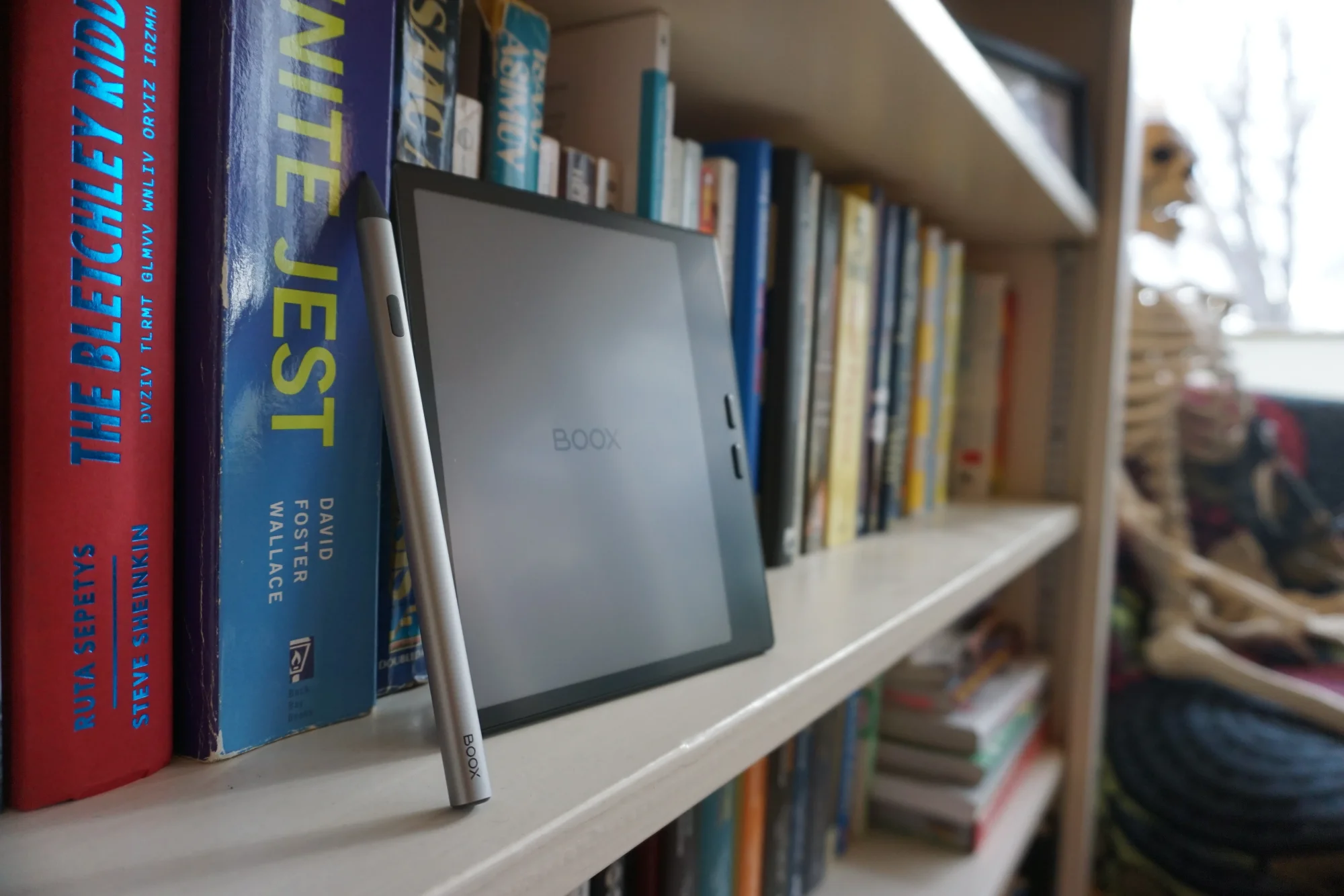
And it didn't power back on.
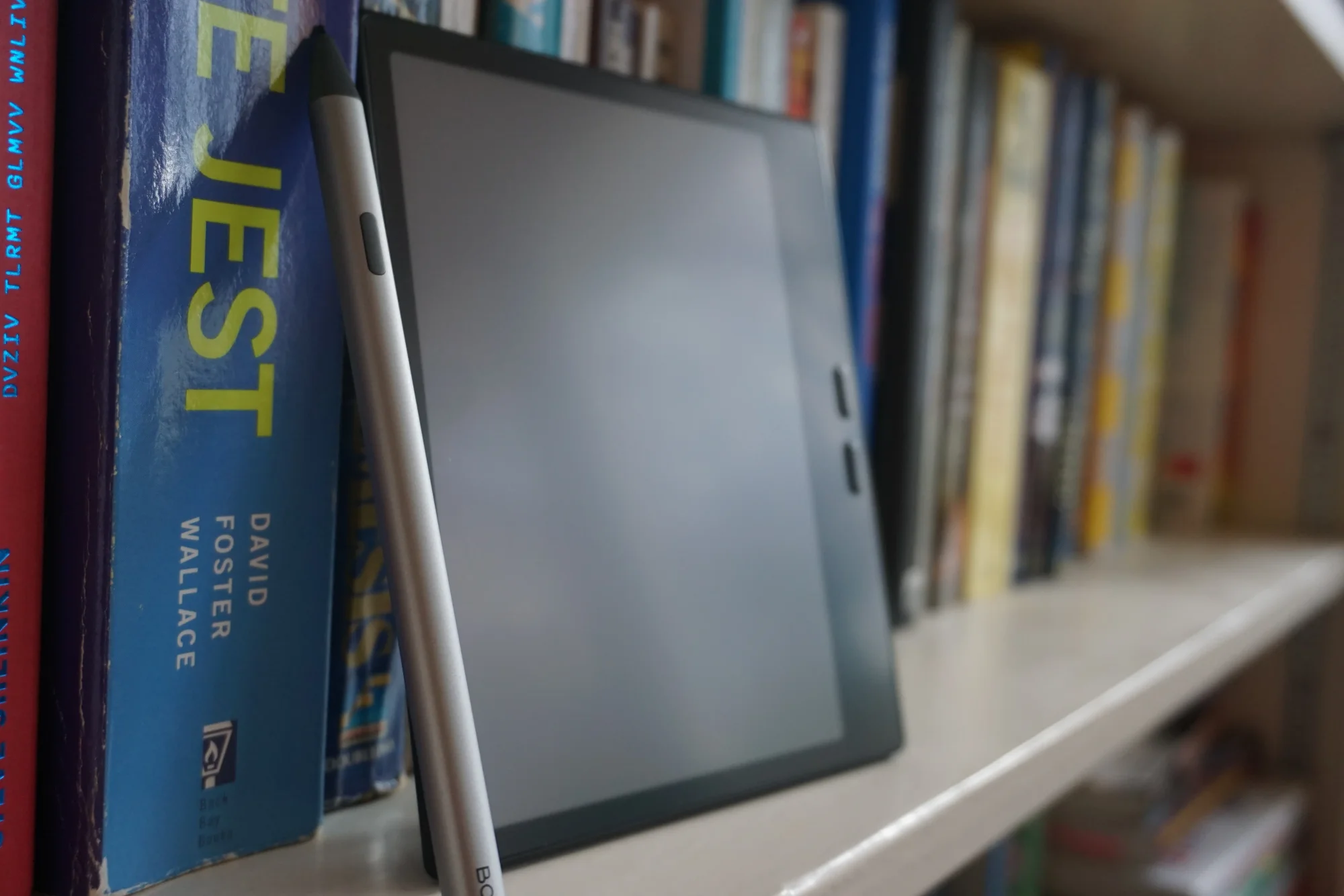
My device started bootlooping. And I'm not alone:
- Go Colour 7 Stuck in Bootloop
- Bootloop Go Color 7
- Boox Go Color 7 G2 Stuck on Boot
- Boox go 7 stuck on boot loop
- Go 7 gen 2 bootloop
- HELP! Boox Go Color 7 Gen II Boot loop
- Boox Go 7 BW boot loop
- New BOOX Go 7 (Official Refurb) stuck on BOOX logo - won't boot or enter recovery
- Go 7 bootloop
Unfortunately, DIY solutions couldn't solve my problem, since storage is encrypted and the bootloader is locked. I couldn't even switch the boot partition in fastboot mode. Community reports (and my own experience) indicate that Onyx Boox support is... nonexistent to unhelpful. An official Boox spokesperson commented on a few of the threads linked above, but their advice was just 'factory reset or send it in for a replacement' (most likely at significant cost). I tried fetching the latest upx firmware image to flash over mine, thinking the image on my device was corrupted... but you can't flash an older image on top of an existing image, and my Go 7 arrived running an otherwise-unreleased software image that I couldn't fetch another copy of from Boox's firmware endpoints, which obfuscate images behind MD5 hashes:
- Build Fingerprint:
Onyx/GoColor7_2/GoColor7_2:11/2026-07-09_22-25_4.2-rel_0709_f2d99abda/8835:user/dev-keys - Build Number:
8835 - Build Date / Version:
July 9, 2026 (4.2-rel_0709_f2d99abda) (1783607823)
The latest image I could get from Boox? April 2026 V4.2. It's November. I can understand shipping pre-release software to fix an issue for a few days or weeks, but months? My Nova 3 doesn't get security updates any more, which is part of the reason I wanted to try the Go 7. But apparently it doesn't get security updates either!
Eventually, after waiting for days for a Boox support response, I factory reset my Go 7. It works again! But now I'm stuck with a device that I don't trust. I rely on my ereader literally every single day. I take it wherever I go: the coffee shop, local breweries, holidays with the family, hikes, whatever. Hell, I took my Nova 3 on a thousand-mile bike trip across the UK, reading and writing on it literally every single day. I journal in it, I use it as an escape from bright computer screens, I read before I sleep every night. Full stop, I cannot have my device just... randomly stop working at the drop of a hat. Even if the hardware isn't fully broken, I don't want to lose all of my journal entries or my book collection.
Boox has a serious problem here. A factory reset should not be the only way to fix a problem that happens completely randomly on an otherwise-fine device. As far as I can tell, they royally screwed up A/B boot partitions on the Go 7 series, possibly others. So every Go device out there is a ticking time bomb that will just stop working until it gets factory reset. And Boox support is gone fishing.
Actual Summary #
The Onyx Boox Go 7 Color Gen II is a lovely device. It's a great form factor. The screen is beautiful and snappy, if lower contrast than years-older monochrome e-ink displays. The display frontlight gets dim enough for reading in total darkness, and bright enough to help with contrast in uneven lighting. The page buttons feel great. The software is bad, but you can replace apps with whatever you like from F-Droid or Google Play. The battery life is mediocre, unless you go to significant lengths to reduce idle drain. The pen is imprecise, heavy, bulky, requires charging, and I do not recommend it.
If this device wasn't impacted by a serious hardware issue, I would rate it 8/10. I like a lot about it, and I can mostly accept the compromises -- though I won't lie, switching back to a WACOM magnetic EMR pen on my Nova 3 is a massive breath of fresh air that reinforced just how bad the USI pen implementation is.
But the Go 7 is impacted by a serious hardware (or low-level software) issue. I don't know why, I don't know how, but many people have woken up some random day to find their Go 7 stuck in a loop of failed boot sequences. So I have to assume that a significant chunk of Go 7s are vulnerable to this problem. And when it happens, you'll either have to factory reset (losing all personal data on your device) or send the Go 7 back in to Boox for some mysterious treatment (which will take, at minimum, weeks, and may also lose your data).
If you can bear your ereader randomly failing on you and losing all personal data? Give the Go 7 a try, it's fantastic. When it works.